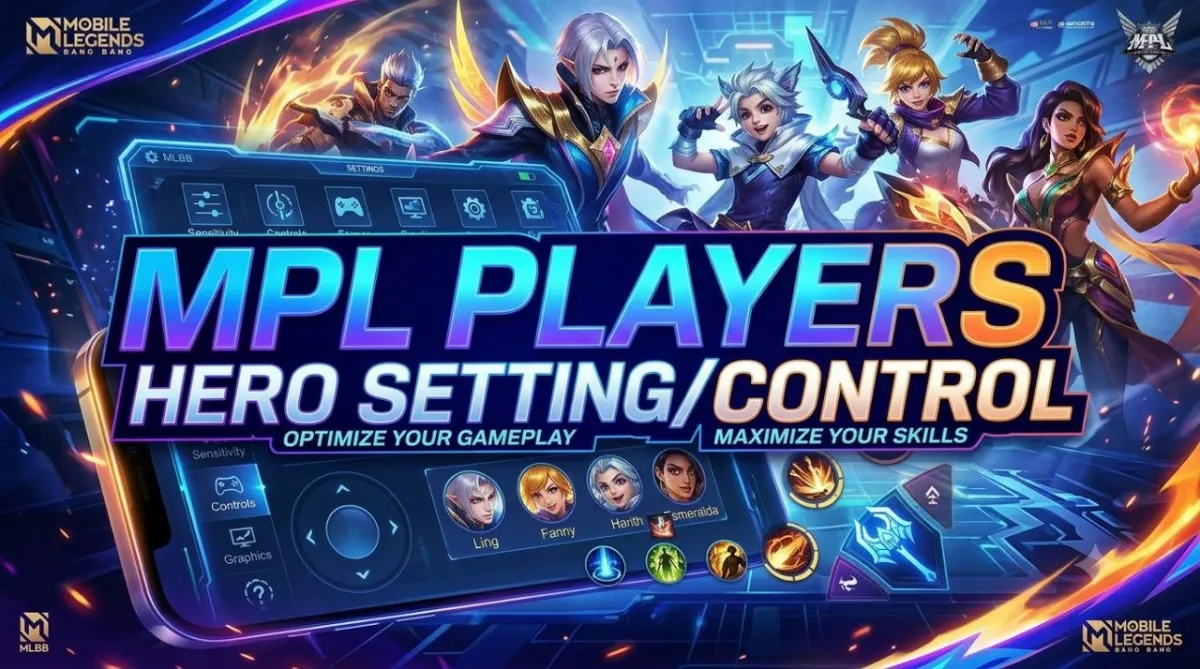
Best MLBB Pro Settings: Copy MPL Players' Control & Sensitivity Setup
Master Mobile Legends with the ultimate MPL player control settings. Optimize your graphics, targeting, sensitivity, and HUD to dominate rank games.
Ever wondered how professional players in the Mobile Legends Professional League (MPL) execute flawless fast-cable combos on Fanny, steal the Lord with millisecond Retribution precision, or kite enemies effortlessly with Marksmen? While mechanical skill and game sense play a huge part, the foundation of every pro play starts with optimized game settings.
Default settings in Mobile Legends: Bang Bang (MLBB) are designed for casual players and often limit your mechanical potential. By adopting MLBB pro settings used by top MPL superstars from Indonesia, the Philippines, and Malaysia, you can dramatically improve your reaction times, map awareness, and skill accuracy. In this comprehensive guide, we will break down every single setting tab—from Controls and Graphics to Custom HUD—so you can play like an MPL champion.
1. Basic Graphics Settings for Maximum Performance
Before diving into control mechanical toggles, you must ensure your game runs with zero input lag and maximum frame rate. A laggy screen will ruin even the best control layout.
- Graphics Quality: Smooth or Medium. While High/Ultra graphics look stunning, MPL pros prefer Smooth or Medium graphics to keep their screen clutter-free and ensure steady frame rates during intense 5v5 teamfights.
- Frame Rate / Refresh Rate: High, Super, or Ultra (Set to the highest available option on your device). Higher frame rates reduce input lag, giving you faster response times when casting skills or dodging skill shots.
- Camera Height: High. This gives you a wider field of view (FOV) of the battlefield, allowing you to spot incoming ganks and enemy movements earlier.
- Screen Vibration: Off. Screen shakes during skill casting can distort your visual focus and disrupt manual skill aim.
- HD Mode & Shadows: Off. Disabling shadows improves FPS stability and removes visual distractions.
- Outline: On or Off. Turn it On if you need clearer hero model separation, or Off for slightly better device performance.
2. Core Control Settings: The MPL Standard Setup
The Controls tab is where the magic happens. Fine-tuning these options will give you total control over targeting and movement.
A. Targeting Method
Never use the Standard targeting mode. MPL players strictly use Advanced Control Method. This option gives you separate buttons for minion hits, tower attacks, and hero attacks, which is mandatory for pushing turrets under pressure or last-hitting lane minions without accidentally targeting enemy heroes.
B. Target Priority
Choose Lowest HP (Percent) or Lowest HP (Amount) based on your role:
- Lowest HP (Amount): Recommended for Assassins, Mages, and Burst Marksmen. This prioritizes squishy targets like Mages and Gold Laners who have low total health pools.
- Lowest HP (Percent): Great for Tank/Roamers or fighters using execute mechanics.
- Close Target: Avoid using this setting unless you are playing specific close-range heroes like Freya or Minsitthar in specific situations.
C. Hero Lock Mode (CRITICAL)
Set to ON. This is non-negotiable for competitive play. Hero Lock Mode displays mini hero avatars near your attack button when enemies appear on screen. Tapping an avatar locks all your basic attacks and targeted skills strictly onto that hero. This prevents your ultimate from hitting a full-HP tank instead of the low-HP enemy Jungler.
D. Skill Smart Aim & Basic Attack Smart Aim
Set Skill Smart Aim to OFF or ON depending on your comfort. Most pros keep it OFF to rely on fast, manual directional flicking. However, enabling Basic Attack Smart Aim can be beneficial for specific heroes like Beatrix or Kimmy to select precise targets in busy teamfights.
3. Camera & Skill Sensitivity
Sensitivity dictates how fast your camera glides when panning around the map and how responsive your skill indicators feel.
- Camera Sensitivity: Set to High (around 70% - 80%). A high camera panning speed allows you to check surrounding bushes, objective pits, and side lanes rapidly while moving your hero with the left joystick.
- Skill Wheel Sensitivity: Set to High (around 80% - 100%). This ensures your skill indicators immediately respond to quick finger flicks, which is essential for fast-paced heroes like Lancelot, Ling, Gusion, and Chou.
- Skill Wheel Position Adjustment: Keep default or slightly raise it depending on your thumb size to avoid misclicking battle spells or active item skills.
4. Advanced Control Toggles Checklist
Make sure your settings tab matches this pro checklist:
- Method of Skill Cast: Auto-cast (for speed) or Manual (for accuracy). Pros use quick manual drag cast.
- Cancel Cast: Joypole Drag or Drag to Target area. Set to Drag to Target Area to avoid accidentally canceling skills during chaotic movements.
- Camera Shift: ON. Automatically shifts camera angle slightly in the direction of long-range skill casts (e.g., Novaria, Selena, Pharsa, Flameshot).
- HP Shift: ON. Keeps HP bars visible at the top of the screen when enemies move off the immediate center frame.
- Assisted Aiming: OFF or ON. Turn OFF if you want complete manual precision without the auto-aim drag pulling your cursor away.
5. Custom HUD & Button Layout Strategy
Your HUD layout should reflect your primary role and finger grip (2-finger thumb player vs 3-finger claw player):
- Enlarge Retribution & Battle Spells: If you are a Jungler, scale up your Retribution button to 120%–130% and place it close to your right thumb for instant reactions during Lord contests.
- Enlarge Key Skills: Boost the scale of high-impact ultimate skills (e.g., Wanwan Crossbow, Chou Ultimate, Fanny Cable skill).
- Map Placement & Opacity: Increase Mini-map scale to around 110% and keep transparency low so map details stand out instantly. Pros check their mini-map every 2 to 3 seconds!
- Active Items Position: Place active items (Winter Truncheon, Wind of Nature, Conceal) near your basic attack/skill buttons so you can trigger immunity in a fraction of a second.
Enhance Your Gaming Experience with SynnMLBB Store
Once you have configured the ultimate best MLBB settings, you'll want your heroes to feel as smooth and stylish as possible. Professional MPL players always equip legendary, collector, or Starlight skins because many premium skins feature smoother skill animations, clearer visual effects, and customized sound cues that make skill-casting feel even more responsive.
Looking to unlock your favorite hero skins, upgrade your emblem sets, or grab the latest Starlight Pass? Check out synnmlbb.com! Synn Store offers fast, cheap, and 100% secure Mobile Legends diamond top-ups with instant delivery. Power up your account today at synnmlbb.com and dominate the Land of Dawn with pro settings and epic cosmetics!
Conclusion: Practice Makes Perfect
Copying MPL player controls will instantly elevate your mechanical capability, but building muscle memory takes time. Spend 15-30 minutes in Custom Training Mode to get comfortable with your new camera panning, Hero Lock toggles, and customized HUD placement. Fine-tune sensitivity settings until dragging skill shots feels like second nature. With optimized controls and reliable diamond top-ups from Synn Store, your journey to Mythic Glory starts now!